Customer Favorites Overview
The Customer Favorites feature helps your team deliver exceptional, personalized service to your most loyal customers. When a Rewards member logs into their account, their Favorites and Recent Orders are automatically displayed at the start of the transaction, making it easy for baristas to quickly add a customer’s go-to drink to the order.
In This Article:
- How Customer Favorites Work
- How to Favorite an Item
- How to Enable Customer Favorites at Checkout
Note: If a customer hasn't ordered or favorited items at your shop yet, baristas will see the Shop’s Top 10 Most Ordered Items instead.
How Customer Favorites Work
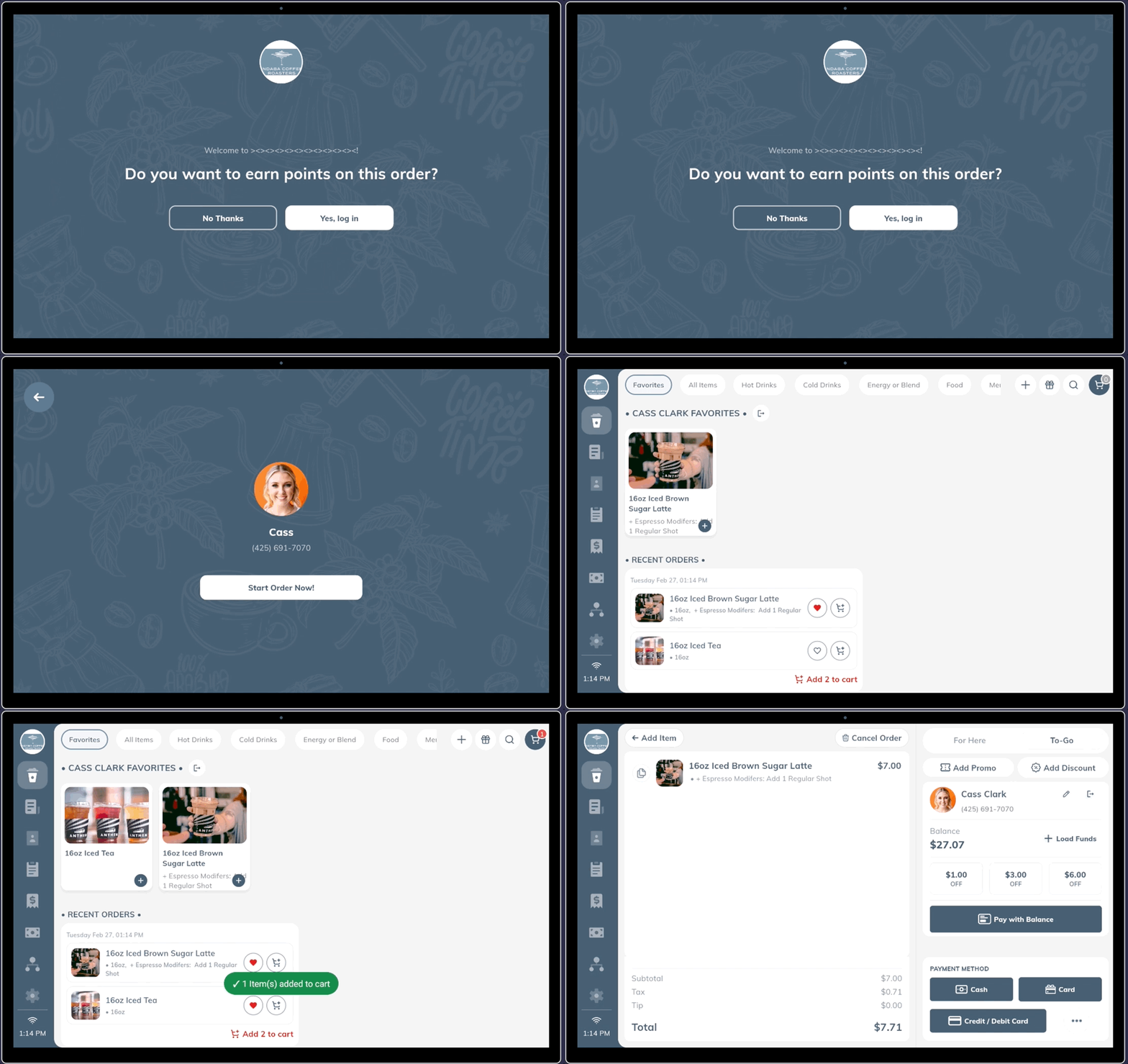
When a customer is logged into their Rewards account and has previously visited your shop, baristas can view both their Favorites and Recent Orders.
Steps:
- At the start of the transaction, enter the customer’s phone number when prompted.
- The Favorites menu category will appear by default.
- You’ll see two sections:
- Customer Favorites
- Customer Recent Orders
- Tap the cart icon to instantly add any item to the order.
- Tap the item itself to make changes to modifiers, size, or other preferences.
- Proceed to checkout as usual.
 How to Favorite an Item
Customers can favorite an item in the following ways:
- In the joe Coffee App
- From Recent Orders (Look for the red heart icon ❤️)
Favoriting an item includes all selected modifiers and preferences, making it easy to reorder exactly the same item.
Coming Soon: Baristas will also be able to add items as favorites directly from the checkout screen.
How to Enable Customer Favorites at the Start of a Transaction
To ensure the most efficient workflow, we recommend enabling the Rewards Member Prompt on your POS tablet. This allows customers to log in to their Rewards account at the beginning of each transaction, unlocking access to their Favorites and Recent Orders right away.
⚠️ Note: This is the first version of this feature, and we’ll continue to release updates to further streamline barista workflows.
Steps to Enable the Rewards Member Prompt:
- On the joe POS tablet, tap the gear icon in the left-hand menu to access the Settings tab.
- In the left-hand menu, select the Features tab.
- Toggle ON Enable Rewards Member Prompt for One Screen Mode.
💡 Originally designed for single-tablet setups, this feature also works with dual-screen POS systems.
Restart the joe POS App:
- Swipe up from the bottom of your tablet screen.
- Tap the three horizontal lines to view open apps.
- Swipe up on the joe POS app to fully close it.
- Reopen the joe POS app to activate the change.
Once enabled, you’ll see the Rewards Member Prompt appear at the start of each transaction, allowing you to quickly access the customer's Favorites.
Still Having Issues?
If you’ve followed the steps above and are still experiencing issues, please don’t hesitate to reach out to the Joe Success Team at support@joe.coffee. We’re here to help!